Showing posts with label 7. Show all posts
Showing posts with label 7. Show all posts
Sunday, November 2, 2014
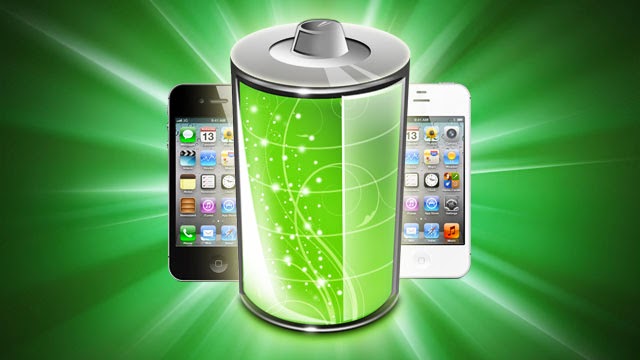
How To Fix iOS 7 1 Battery Life Problems
Apple’s iOS 7.1 update brings additional functionality, but users have flocked to Cupertinos online forums, complaining about battery life issues.
The issue has been reported across iPhones and iPads, so it appears to be a software problem. Ars Technica ran extensive battery tests on iOS 7.1 and found battery life to be slightly worse than before.
No one has found an official fix, but users have reported different levels of success fighting the battery drain. Here are 10 best practice battery life tips which can help:
1 - Test your battery
Former Apple Genius bar employee Scotty Loveless has a test to help check whether your phone has a battery drain problem.
Go to Settings > General > Usage. Write down the standby and usage times. Press the lock button and leave the device for 5 minutes.
Now go back into the Settings menu and recheck the Usage stats. Your standby time should have increased by 5 minutes and Usage time decrease by 1 minute . If your Usage time rises by more than 1 minute, your phone is not going into Sleep mode properly and you have a problem
2 - Leave apps running
Contrary to popular belief you dont need to close apps manually. When you are using an app, iOS freezes the other apps where you left them. They are not running in the background unless background data or location services are on.
Constantly closing apps and then re-opening them drains more battery as they need to be loaded into the RAM.
3 - Disable push email then re-enable
Sometimes push email gets stuck in a loop and this drains the battery constantly. Turn it off and then check the usage stats from step one. If the battery drain reduces, you’ve found you’re problem. You can also try changing the fetch times to once every hour, 30 minutes, or 15 minutes.
4 - Turn off battery percentage
Constantly checking the battery life of your device can have a detrimental impact. If youre switching your device on every five or 10 minutes to check the battery percentage more power is being drained. Try turning off the indicator.
5 - Adjust brightness
Double check the brightness setting. The screen is the biggest consumer of battery and if you’ve got it set to full blast this will drain the power quickly. It’s a good idea to leave it on 75 per cent and also use the auto-brightness feature. Go to Settings > Wallpaper & Brightness.
6 - Turn off Location services
Location services is also a massive battery hog. To turn this off go to Settings > Privacy > Location Services. Turn off Bluetooth as well from the quick settings menu by flicking up from the homescreen.
7 - Turn off Background updates
Turn off background updates for apps that dont need it - like Facebook. Go to Settings > General > Background App Refresh.
8 - Hard reset
Do a hard reset (this won’t erase any data). Hold the home and power buttons for ten seconds until it restarts. This reboots the phone and kills any potentially power-hungry background tasks.
9 - Use to depletion
Charge your phone to full capacity, then use it until the battery dies. Apple recommends doing this once per month in order to retain maximum battery health.
10 - Reset the device
Reset the phone completely. This should be the last option as it wipes your data. Connect your phone to your computer and restore it in iTunes as a new device. Do not restore from a backup.

Friday, September 19, 2014
UnDelete Files Windows 7 Recovery About Computer Tutorial
| Undelete Files in Windows |
There are so many times when you accidentally delete your important data. Sometimes, some operating system error or hardware failure causes the loss while most of the time, our own mistakes lead to removal or loss of very precious information. If you also accidentally deleted your data and now eager to get it back then you are in luck. Here, you will find a working trick or method to Un Delete your files in Windows 7. In this method, we actually use a data recovery software or tool to recover lost files of Folders in Windows 7. By the way, this method works on all Windows i.e. Windows XP, Windows 8 and Vista also. You can recover any type of data, whether it is a picture or photo, a video file, music file or presentation or worksheet. This tool recovers any kind of data.
You may also like: Enable Aero in Windows Home Basic and Starter Edition
How To UnDelete Files in Windows You may also like: Enable Aero in Windows Home Basic and Starter Edition
In this tutorial, we will be using a software or tool known as UnDelete Plus. This tool is 100% free, so you dont have to worry about the price. Follow the steps to download and install the software.
- Go to Software Download Page.
- Your download will start automatically.
- Now Run the file and install the software.
- Now run a Search for lost files.
- Customize your search according to your requirements.
- Restore the desired files or data
Thursday, August 28, 2014
How to Hide Files or Folders in Windows 7 About Computer

Sometimes, it is necessary for you to hide some specific folders or files in your Computers hard disk. Some files needs some privacy. So if you want to do not let others see your important or personal files and folders then there is a good option to do this in Windows.
If you are using Windows operating system then you can read this tutorial and implement it on your own computer to hide any important files or folders.
Actually this is a basic feature of Windows so do not assume it as a fully safe method as any person who have knowledge of Windows basic features can still find your files by doing a little work. But still, this method is very good to hide some data, as everyone (may be your friend, competitor or family member) will not always check your computer for hidden files. If you showed a folder that does not have that specific data then most probably theyll agree that you deleted it.
So lets get started, follow the steps given below to hide any folder or file in Windows 7. The steps given are for Windows 7 only, but they may be similar to other Windows Versions.
How To Hide a File or Folder in Windows :
- First of all, Go to the folder or directory where that specific file or folder is present.
- Now at the top-left of the windows, find a drop-down menu saying: Organize.
- Click on it, then click on Folder and Search Option.
- Now switch to View tab.
- In advanced settings box, under the menu Hidden Files and Folders, make sure that Dont Show hidden, files, folders or drives.
- Now we have instructed windows explorer to not display hidden files and folders. Now we have to hide that specific file or folder.
- Right Click on the File or Folder that you want to hide.
- Click on properties.
- In Attributes, check the hidden box.
- Click on Apply and then OK. Now a pop may ask you that you want to apply changes to folder only or to all files and folders present in that folder. Choose your desired option and thats all
Subscribe to:
Posts (Atom)
